How to Stop AI Amnesia in Lesson Planning
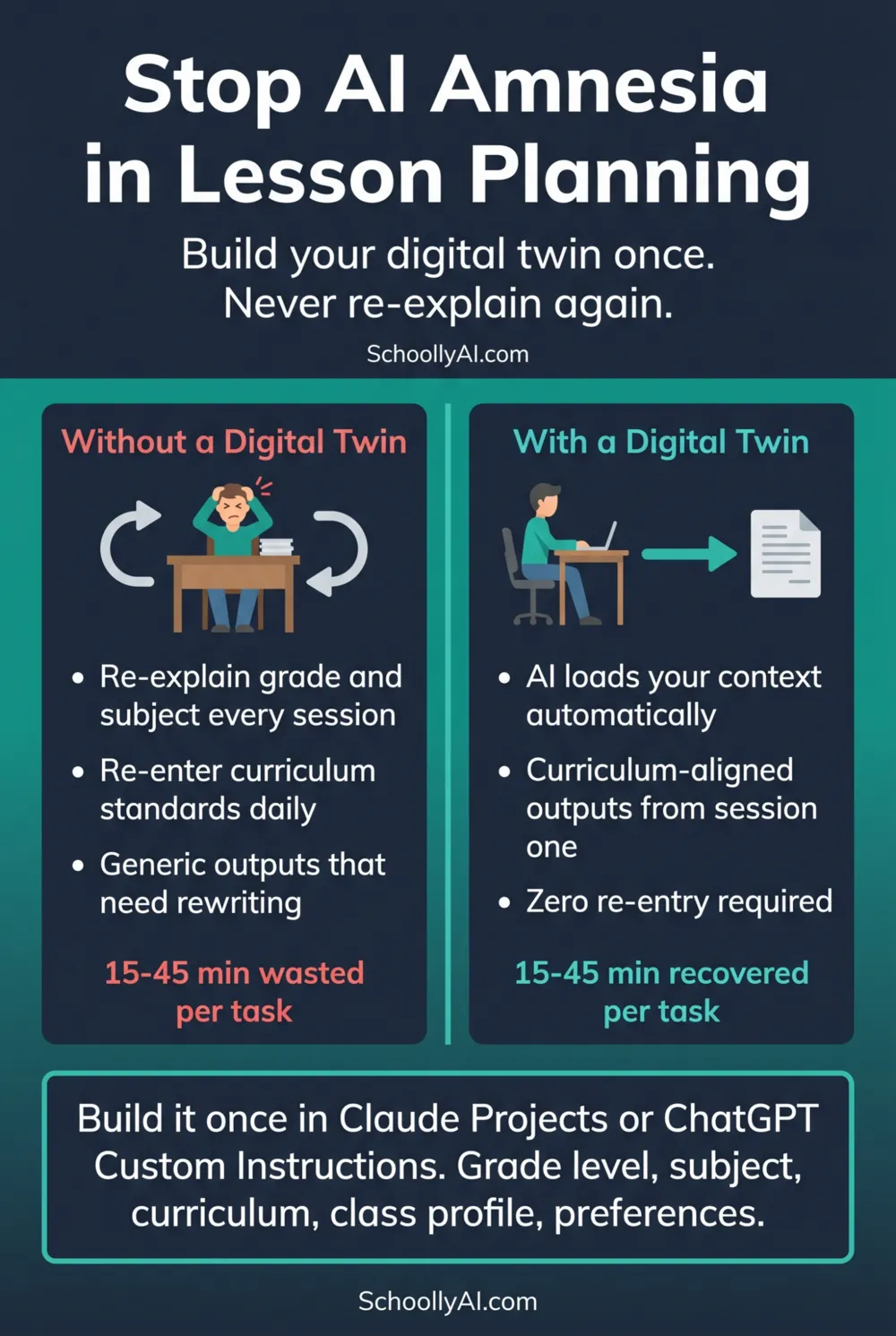
An estimated 15 to 45 minutes per task are recovered when teachers stop re-explaining their classroom context to AI tools every single day. Jobs for the Future, 2026 The fix takes about twenty minutes to set up once and never needs repeating.
- AI tools have no memory between sessions by default. Every morning you are starting from scratch.
- The daily context tax is the time spent re-explaining grade level, subject, standards, and preferences before any useful work can begin.
- A digital twin is a persistent teacher profile document that loads automatically. You write it once.
- Claude Projects and ChatGPT Custom Instructions both support this. Setup takes under twenty minutes.
What AI Amnesia Actually Is
Standard AI tools do not retain memory between sessions. Close the tab and everything you told the tool disappears. Your grade level, your curriculum, your grading preferences, the specific unit you are currently teaching: gone. Open a new session tomorrow and the model greets you as a complete stranger.
This is not a flaw being worked on. It is a fundamental architectural choice in how most consumer-grade AI tools are built. Conversations are isolated by design. The tool has no way to connect who you were yesterday with who you are today.
For teachers, this means every productive AI session begins with an unpaid onboarding ritual. The community shorthand for it is AI amnesia. The time it costs is the daily context tax.
The Daily Context Tax
Here is what the daily context tax looks like in practice. A Grade 11 chemistry teacher opens Claude. Before asking for help with anything, she needs to establish: she teaches Grade 11 chemistry in Ontario, her current unit is electrochemistry, she has twenty-six students including three EAL learners, she prefers bullet-point outputs over paragraphs, she uses Canadian spelling, and she grades on a four-level Ontario rubric. That is a paragraph of setup before a single useful thing gets done.
Multiply that across five sessions a week, forty weeks a year, and the context tax is not a minor inconvenience. It is a significant and entirely avoidable drain on preparation time.
The deeper problem is that without this context, AI outputs are generic. A lesson plan that does not know your grade level, your curriculum, or your students is a template, not a useful tool. The context tax is not just time lost. It is the difference between an output you can use and one you have to rewrite from scratch.
For more on how tool overload amplifies this problem, see AI Tool Overload and Teacher Burnout.
Build Your Digital Twin
A digital twin is a plain text document that describes everything the AI would need to know about you to be immediately useful. You write it once. You upload it to your AI platform. From that point forward, every session starts with the AI already knowing who you are.
Here is a template. Copy it, fill in your details, and save it as a plain text or markdown file.
## My Teaching Context

Name: [Your name]
Role: [e.g. Senior High School Science Teacher]
School jurisdiction: [e.g. Ontario, Canada]
Subject: [e.g. Chemistry]
Grade levels: [e.g. Grade 11 and 12]
Current unit: [e.g. Electrochemistry]

Class profile:
- [e.g. 26 students, 3 EAL learners, mixed proficiency]
- [Any other relevant demographic context]

Curriculum framework: [e.g. Ontario Science Curriculum 2023]
Grading scale: [e.g. Ontario four-level achievement chart]
Preferred rubric format: [e.g. Four columns, one per level]

Output preferences:
- Use Canadian spelling throughout
- Prefer bullet-point structure over long paragraphs
- Keep vocabulary appropriate for Grade 11 reading level
- Flag any content that may not align with Ontario curriculum
Keep it under 500 words. The goal is clarity, not volume. Every item you include is something the AI will apply automatically. Every item you leave out is something you will have to specify per session.
Update this document at the start of each new term when your unit changes, your class list shifts, or your curriculum focus changes.
Setup: Claude Projects
Claude Projects is the most reliable persistent context option currently available. Once a document is uploaded to a Project, it is available in every conversation within that Project without any action on your part.
Step 1. Log into Claude at claude.ai. In the left sidebar, click "New Project." Name it something you will recognise: "Grade 11 Chemistry" or "My Teaching Context" works fine.
Step 2. Inside the Project, look for the option to add files or documents to the Project knowledge. Upload your context document. Claude confirms it has been added.
Step 3. Start a new conversation inside the Project. Ask: "What grade level do I teach?" Claude should answer correctly from your document without you having typed anything additional. If it does, the digital twin is working.
Step 4. Run all your lesson planning, rubric work, and differentiation requests inside this Project. Every conversation inherits your context automatically.
You can create multiple Projects for different subjects or class groups. A Grade 11 Chemistry Project and a Grade 12 Physics Project can each carry their own context document independently.
Setup: ChatGPT Custom Instructions
ChatGPT Custom Instructions works differently from Claude Projects. Instead of uploading a file, you paste your context text directly into a settings field. It applies to every conversation you open, not just conversations within a specific workspace.
Step 1. Log into ChatGPT. Click your profile icon at the bottom left, then select "Customize ChatGPT" or navigate to Settings and find Custom Instructions.
Step 2. You will see two text fields. The first asks what ChatGPT should know about you. Paste your full context document here.
Step 3. The second field asks how ChatGPT should respond. Add your output preferences here: Canadian spelling, bullet points, Grade 11 reading level, and so on.
Step 4. Save. Open a new conversation and test the same way: ask what grade level you teach. If it answers correctly, the setup is working.
Note that ChatGPT Custom Instructions applies globally across all conversations, not just a specific workspace. If you teach multiple subjects with very different contexts, Claude Projects may be the better option since you can maintain separate context documents per subject.
Build Your Context Document
Fill in the fields below and copy the generated context document to upload to Claude Projects or paste into ChatGPT Custom Instructions.
FAQ
AI amnesia is the problem where an AI tool forgets everything about your classroom at the end of every session. The next day you have to re-explain your grade level, subject, curriculum standards, and preferences from scratch. This daily re-entry of context is called the daily context tax.
Build a digital twin: a single document describing your professional identity, grade level, subject, curriculum standards, and output preferences. Upload it to Claude Projects or paste it into ChatGPT Custom Instructions. Both platforms load this context automatically in every session.
Include your name and role, subject and grade level, curriculum framework and jurisdiction, current unit topic, class size and any relevant demographics, grading scale and rubric preferences, preferred output format, and any formatting rules such as spelling conventions.
Yes. Claude Projects allows you to upload documents that persist across all conversations within that Project. Every new session inside the Project has access to the uploaded files without any re-entry required. This is the most reliable way to eliminate the daily context tax in Claude.